Search This Blog

Tuesday, 26 January 2010

How to import IBM Cognos 8 BI Sample Databases


Hi All,

A post after long time... ;-)

Today let's understand how to import Microsoft SQL Server sample databases provided by IBM Cognos 8 BI into Microsoft SQL Server.

Let's get moving...

First step is to create a new database in your Microsoft SQL Server 2000 Enterprise Manager so that we can restore the sample database into this new empty database.


Right click on the Databases and choose New Database from the context menu.


Give the new database a name: GOSALESDW and click OK button.


The new database is created. You can see the tables node of this new database. A standard set on system tables are created by default.


Navigate to the path as shown in the below picture.

Uncompress the .ZIP file.


Right click on the newly created Database and select 'All Tasks' and then to 'Restore Database'.


Select the 3rd radio button 'From Device' and click on 'Select Devices' button.

Click on Add button.


Choose the path where the copied sample db file is available.


Select the GOSALESDW that you extracted in earlier step.
For convenience, I have copied the extracted database dump file into the MS SQL Server's BACKUP folder in MS SQL Server path.

The path should be similar as shown in below picture.


Click on OK button and then you see the dump file path under devices list, as shown below.


You can just have a glance at the 'Options' tab.


File restore process begins...


...and finishes pretty quickly.


As you can see in these pictures below, there are 66 IBM Cognos related tables, 6 views and 31 stored procedures in this new database.


Hope you enjoyed the post...!
Sandeep Pamarati

Friday, 14 November 2008

Installation Procedure of Microsoft SQL Server 2000 SP4

Hi Guys/Gals,

Let's upgrade our Microsoft SQL Server 2000 with SP4 which is available here.

Extract the contents of the zip file (SQL2000-KB884525-SP4-x86-ENU.EXE) to a folder or just run it.

Installation begins.


Click 'Next' here.


Say 'Yes' to this agreement.


Apply the Service Pack 4 to the default instance. Just click 'Next' here.

Validating the user.


Choose 'Window Authentication' here.

Apply the SQL Server Service Pack 4.

Just a warning. Click 'OK' here.

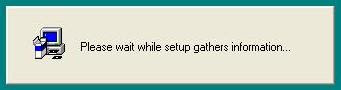
Wait while the necessary information is gathered.

All the necessary information is available.

Installing Microsoft DAC

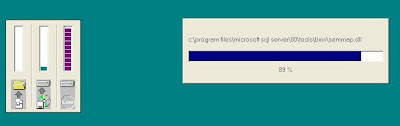
Installation in progess.


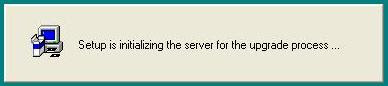
Upgrading the server process initiated.


Executing upgrading sqls...


Executing upgrading sqls...(cont)...

Applying the SQL scripts.


Backup the newly upgraded master databases for safety.


The installation in completed successfully.


Hope everything went fine... ;-)

Saturday, 1 November 2008

Installation Procedure of Cognos 8 BI Suite 8.1 Model

Hi fellas,

Now, Let's look at the Installation Procedure of Cognos 8 BI Suite 8.1 Model (for U).

The Initial screen.


Agree the license aggrement.


Select a location to install.
You can choose to install Model (Framework Manager) into the same folder where you installed Server. No issues here.


Ignore this warning. Click 'Yes' here.


Click on 'Yes' to create a backup copy of all the modified files.


Have a look, what components are being installed.


Click 'Next' here.
All the necessary information to install is gathered. Click 'Next' here.

Installation in progress. It completes in under 20 seconds.


Installation completed successfully.


----------------------------------------------------------------------------------

Friday, 31 October 2008

Installation Procedure of Cognos 8 BI Suite 8.1 Server

Hi fellas,

The Installation Procedure of Cognos 8 BI Suite 8.1 server for U.

Initial screen.


Agree the license aggrement.


Select a location to install.

Click 'Yes' here.


Have a look, what components are being installed.


Click 'Next' here.


All the necessary information to install is gathered. Click 'Next' here.

Installation in progress. It completes in under 100 seconds.


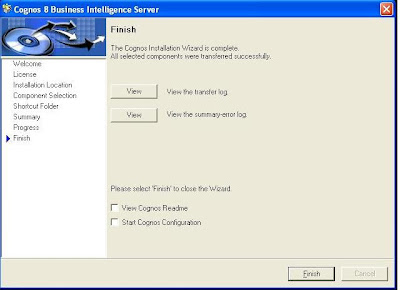
Installation completed successfully.


----------------------------------------------------------------------------------
Proceed to install Cognos 8 BI Model.